Best practices
The best way to set up a project in Docent Studio, shown by building one from start to finish: Halbrook Wren LLP, a fictional law firm reviewing its client Halvorsen Analytics' contracts. When it's done, you download it as a project template: a zip your team imports to start their own projects from the same documents and skills.
- Describe the project. Say what it's for, so whoever imports it knows. (Step 1)
- Add only the documents everyone needs. Shared forms and precedent go in the template; one client's files go in that client's project. (Step 2)
- Put the work you repeat into skills. A checklist in a skill gets the same review every time. (Step 3)
- Enable a model for each role. Vision, document processing, and reasoning, as large as your machine allows. (Step 4)
- Test before you share. Ask real questions and check the answers against their references. (Step 5)
- Share a clean project. Delete your test conversations before you download it. (Step 6)
- Keep one project per matter. Projects are isolated, so one client's files never inform another's answers.
If you'd rather start with the finished result, import it instead.
The firm, its client, and every company, person, and term in the template are made up.
1. Create the project
In Docent Studio, click + New Project in the left navigation bar, name it Halbrook Wren LLP, and pick a color. Open Project Settings (Ctrl+Shift+,) and give it a description that says what it's for, such as "Sample contracts for a fictional company, with contract review skills." Whoever imports the template sees it.
2. Add the documents
Open the Documents panel (Ctrl+Shift+D) and add the files the work is about. For this template, that's five agreements:
| Document | What it is |
|---|---|
Halvorsen-Corvid-MSA-2024.pdf | Signed master services agreement between Halvorsen Analytics and a cloud provider |
Halvorsen-Corvid-MSA-Amendment-1-2025.pdf | Amendment that changes the non-renewal notice period |
Halvorsen-Corvid-MSA-2026-DRAFT.docx | The provider's draft for the 2026 renewal, with less favorable terms |
Halvorsen-Brightwater-Mutual-NDA.pdf | Mutual NDA with a residuals clause |
Pell-Crane-Supply-Agreement.docx | One-sided office supply agreement |
In your own template, these are the documents everyone needs to start with: standard forms, precedent, a policy handbook. Leave out anything that belongs to one client or matter; that goes into each project after it's imported. See Bring your documents.
3. Write the skills
Skills are what make a template more than a folder of files: they carry the way your team does the work. Type / in the prompt and create a new skill to open the skill editor. See Skills.
This template has two. contract-review runs a first-pass review of an agreement against a fixed checklist:
---
name: contract-review
description: When the user asks to review a contract or agreement, run a first-pass review against the checklist and flag anything that needs attention
---

# Contract review
Review the named agreement in this project and produce a first-pass issues list.

## Checklist
- Parties, effective date, and term
- Renewal and the notice needed to stop it
- Termination rights and notice periods
- Limitation of liability and any carve-outs
- Indemnities, and whether they are mutual
- Assignment and change of control
- Governing law and dispute resolution
- Confidentiality and data protection obligations

## Guidelines
- Quote the clause and give its section number for every item
- If an amendment in the project changes a clause, use the amended version and say so
- Mark an item **Missing** if the agreement does not address it
- List anything unusual or one-sided under a separate "Attention" heading
- Do not give a legal conclusion; the output is for attorney review
compare-versions compares a signed agreement with a new draft, clause by clause:
---
name: compare-versions
description: When the user asks what changed between two versions of an agreement, or to compare a draft with the signed contract, produce a clause-by-clause comparison
---

# Compare versions
Compare two versions of an agreement in this project, such as a signed contract and a new draft.

## Output
A table with one row per clause that differs:

| Clause | Current version | New version | Effect on our client |

## Guidelines
- Include clauses that were added or deleted, not only changed
- Take any signed amendments into account when describing the current version
- In "Effect on our client", say plainly whether the change is better, worse, or neutral for the client and why
- End with the three changes most worth negotiating
- Quote section numbers so each row can be checked against the documents
Write each skill's description as the request that should run it, so it also runs when someone asks in their own words rather than typing /contract-review.
4. Choose the models
Press Ctrl+Shift+M, or click Auto in the prompt box, and enable a model for each role the work needs:
| Role | Model | Used for |
|---|---|---|
| Vision | Qwen Vision (qwen2-vl-2b) | Reading scanned exhibits or photographed pages |
| Document processing | Ministral 3 (ministral3-3b) | Parsing and indexing the documents |
| Reasoning | Qwen 3.5 (qwen3.5-2b) | Answering your questions |
Bigger is better: if your machine has the memory, a larger model in each role gives better answers.
Models don't travel with a template: an imported project starts with every model off. Note which ones you used, so you can tell the people you share it with.
5. Try it
Turn web search off with the toggle under the prompt (⌘⌥S, or Ctrl+Alt+S), so answers come only from the project's documents. Then check that the documents and skills do what you meant:
- "Quote the limitation of liability in the 2026 draft."
- "Which agreements let the other side assign without our consent?"
/contract-reviewon the Pell & Crane supply agreement./compare-versionsfor the 2024 MSA against the 2026 draft.
Every answer lists the documents it drew from in a REFERENCES block, so you can check each claim against the agreement. If an answer isn't what you wanted, change the skill and ask again.
6. Download the template
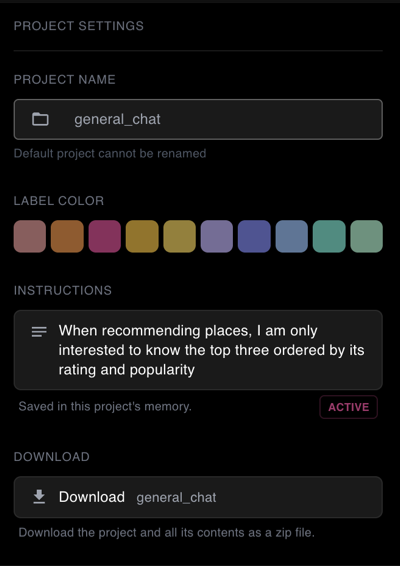
When the project works the way you want, open Project Settings (Ctrl+Shift+,) and click Download. The zip is the template.
| Part | What comes across |
|---|---|
| Project | Its name and description |
| Documents | Every file in the project, indexed again on import |
| Skills | Every skill, as its SKILL.md file |
| Connections | The MCP servers it uses, without their sign-ins |
| Conversations | The project's conversation history |
Models and the web search setting don't come across.
The zip carries the project's conversations along with its documents and skills. Delete the conversations from step 5 before you download, so the people who import the template start with a clean project.
Share the zip with your team. Each person imports it, and each new matter or client starts from it as a project of its own, with its own documents and memory, isolated from every other project.
Importing a template
Download the template the steps above build, or use one a colleague shared:
Download Halbrook Wren LLP (zip, 80 KB)
- In Studio, click + New Project.
- Choose Import, then pick the zip (or drop it onto the dialog), and click Create. The project takes the template's name and gets its own ID.
- Turn web search off with the toggle under the prompt (⌘⌥S, or Ctrl+Alt+S) if the project should work only from its documents.
- Enable the models. An imported project starts with every model off; for this one, use those from step 4.
- Reconnect any connections, since they come without their sign-ins.
The documents are indexed in the background; they show as INDEXING in the Documents panel for a few seconds. Then try the prompts from step 5.
Docent imports templates too: /project import <zip> in the chat, or drop the zip on an empty prompt. See Docent command reference.
Two features reach off your machine, and only when you use them: web search sends the search query, and connections send what a tool call needs to the service you connected. For a privileged matter, turn search off and leave connections off for that project. Everything else stays local.
Docent Studio assists with legal work; it does not replace professional judgment. Review every answer against its cited sources before relying on it, and check your own professional obligations on the use of AI tools.