Command Line Tool
The command line tool lets you manage your projects and skills from the terminal — a scriptable complement to the Studio app. Use it to bootstrap projects, add documents and skills, and curate your local AI projects.
Installation
The command line tool is installed directly from the Studio app — there's no separate download or script to run.
Here are three simple steps to do so:
- Open the Studio app and go to Settings.
- Find the Command Line Tool section.
- Click Install to add the shell command to your path.
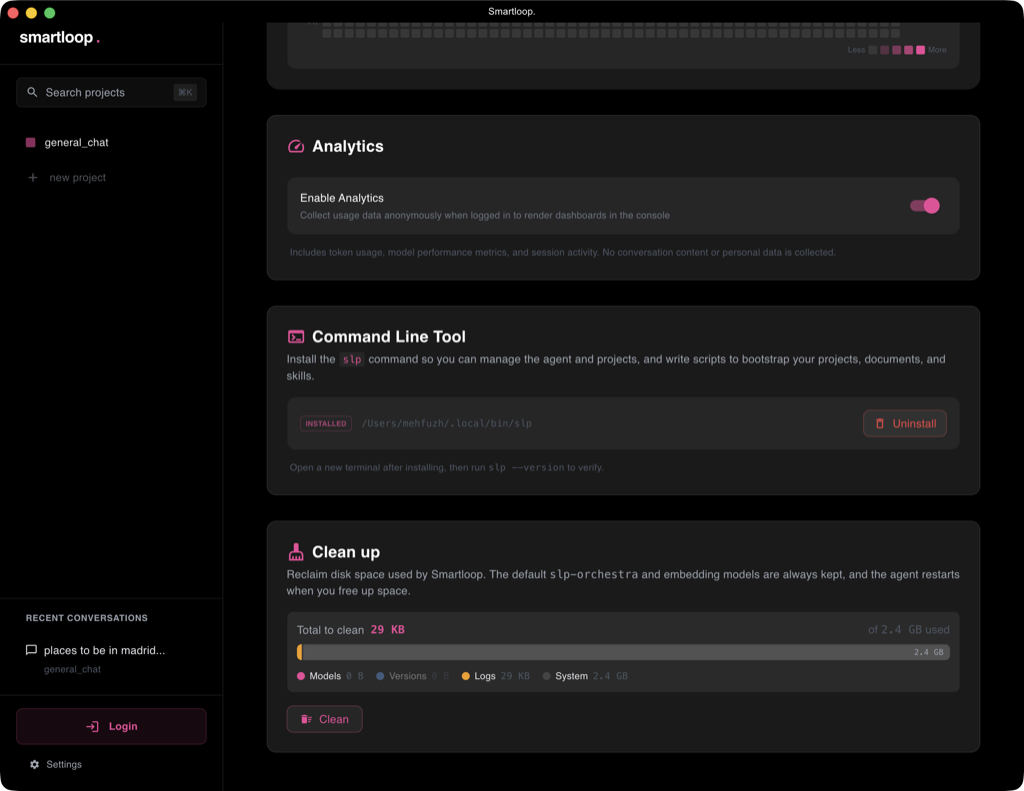
Once installed, Settings shows the install location (for example, ~/.local/bin/slp) and an Uninstall button to remove it.
Open a new terminal after installing, then run slp --version to verify:
slp --version
Usage
To see the available commands, run slp --help:
usage: slp [-h] [--version] {agent} ...

AI Agent harness for extracting information and creating new content

positional arguments:
  {agent}               Available commands
    agent               Agent management commands (start/stop/status/restart)

options:
  -h, --help            show this help message and exit
  --version             show program's version number and exit
The CLI is intentionally minimal: it manages the agent lifecycle only. Everything else — projects, documents, skills, and connections — is handled by the Studio app or by the local API the agent serves.
Managing the agent
slp agent start    # start the agent in the background
slp agent status   # show agent status
slp agent restart  # restart the agent
slp agent stop     # stop the agent
start and restart accept --host and --port to change where the local API listens (default 127.0.0.1:38540), and --no-service to disable auto-restart on crash.
Projects and skills
A project's working directory defaults to ~/smartloop/<name>, and that is where its documents and skills live. Because each project is a plain directory, you can script a repeatable setup by creating the folder and dropping files into it.
Listing, switching, and editing projects and skills is done in the Studio app, or through the local API the agent serves — there are no slp project or slp skill commands.
Connections
There is no slp command for connections. To add one without opening Studio, write a connection file into ~/.smartloop/mcp.d/ — it is picked up without a restart. See Connections for the format.
Requirements
| Requirement | Description |
|---|---|
| OS | macOS (Apple Silicon), Linux (x86_64), or Windows (x86_64) |
| GPU | Vulkan-capable GPU (NVIDIA, AMD, or Intel) on Linux/Windows, Metal on macOS — optional, defaults to CPU |